
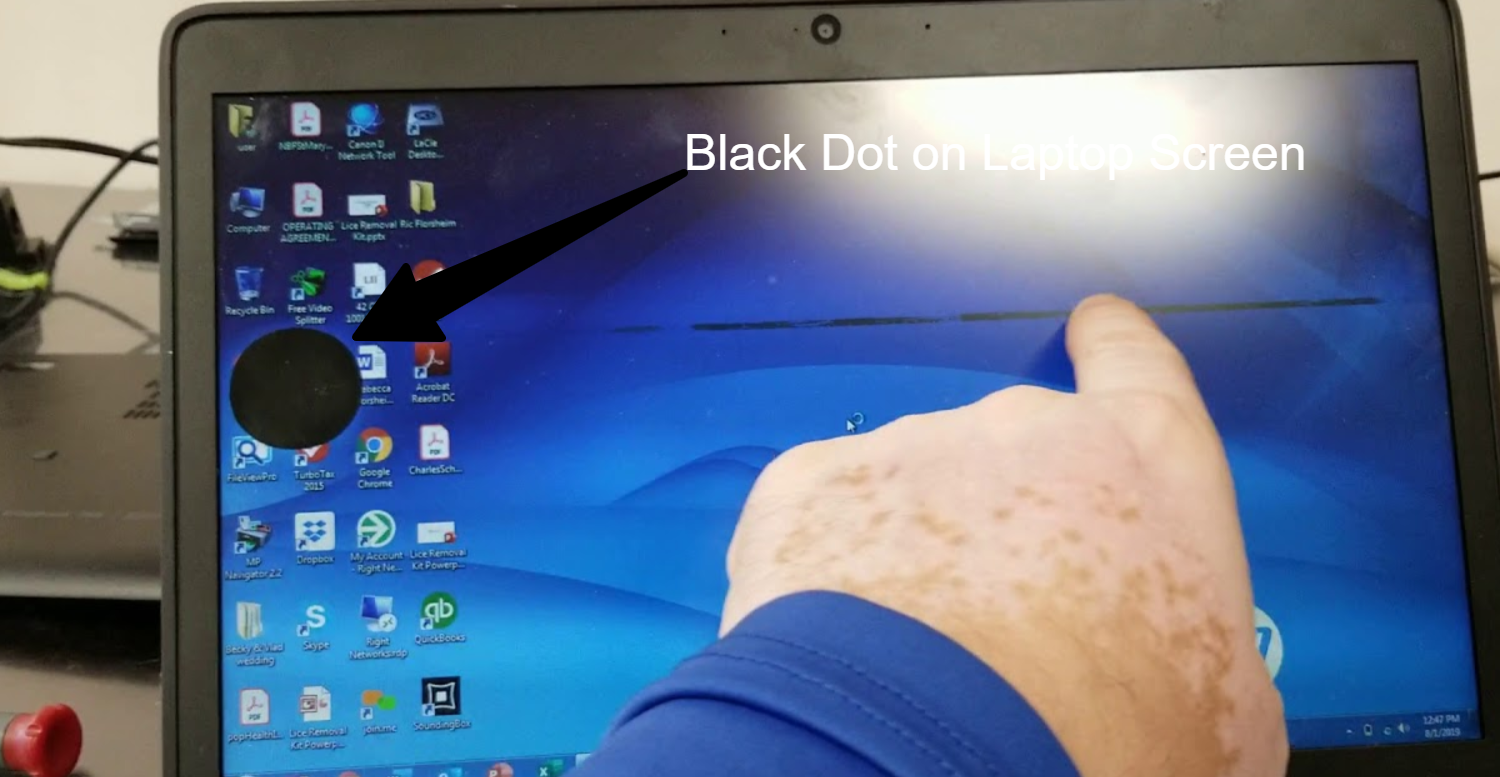
A black dot on laptop screen is usually a dead pixel, a speck of dirt, or minor pressure damage, and many cases can be fixed at home in minutes. Noticing a tiny dark spot in the middle of a document or video is frustrating, and it is easy to fear the worst. This guide explains what causes black dots and spots, how to fix them, when to call a technician, and how to stop them coming back.
What Causes a Black Dot on a Laptop Screen?
The cause is either on the surface, inside the display, or in the software. Knowing which one narrows the fix.
- Dead or stuck pixel: A pixel that no longer receives power stays black. It is the most common cause and does not change when you switch apps.
- Dirt or debris: Dust, a crumb or a smudge on the glass looks like a dark dot and can be wiped away.
- Pressure damage: Closing the lid on a pen, headphones or a loose keyboard cover can crush pixels and leave a black blot that may spread.
- Impact or drop: A knock can damage the LCD layers, producing black spots or patches.
- Liquid damage: Moisture inside the panel causes dark stains that grow over time.
- Backlight or panel defect: Ageing or faulty backlight sections can show up as dark areas.
- Graphics driver or software glitch: A rare cause, but a driver fault can display odd dots or artefacts.
7 Methods to Fix Black Spots on a Laptop Screen
Try these in order, starting with the safest.
- Clean the screen. Power off the laptop, then wipe gently with a dry microfibre cloth. If needed, dampen the cloth slightly with distilled water. Never spray liquid directly onto the screen. If the dot disappears, it was dirt.
- Restart the laptop. A temporary glitch can clear after a reboot.
- Run a pixel test. Display solid white, red, green and blue full-screen images to see whether the dot stays in the same place. A fixed dot confirms a dead or stuck pixel.
- Use a pixel-fixing tool. Free tools and videos flash rapidly changing colours over the spot for 10 to 30 minutes. This can revive a stuck pixel but will not bring back a fully dead one.
- Massage the pixel gently. Switch off the screen, wrap a soft, damp cloth around a blunt stylus and press lightly on the spot for a few seconds. Excess force can create new damage, so keep pressure minimal.
- Update the graphics driver. Open Device Manager, expand Display adapters, then update or reinstall the driver. This rules out a software artefact.
- Check on an external monitor. Connect the laptop to a monitor or TV. If the dot does not appear there, the fault is in the laptop’s own panel.
When Should You Seek Professional Repair?
See a technician if home fixes fail and any of the following applies:
- The black spot is growing, spreading or forming lines.
- The dot appeared after a drop, pressure or liquid spill.
- Several dots or large patches are visible.
- The spot also shows on an external monitor test, or the screen flickers or dims.
- The laptop is under warranty. Many manufacturers replace panels with a set number of dead pixels, so check your policy before opening anything.
A panel replacement is the usual fix for internal damage. Ask for a written quote first, and compare it with the laptop’s value.
Tips to Prevent Black Spots in the Future
- Check the keyboard area before closing the lid, and never leave pens, cables or earbuds on the keys.
- Use a padded sleeve or case, and avoid stacking items on a closed laptop.
- Do not press on the screen, and open and close the lid from the centre of the edge.
- Clean only with a microfibre cloth and screen-safe cleaner.
- Keep food and drinks away from the laptop.
- Use a keyboard cover only if it is thin and made for your model.
- Avoid extreme heat, cold and humidity, which stress the panel.
- Lower the brightness and enable sleep mode to reduce wear on the display.
Conclusion
A black dot on a laptop screen is not always a disaster. Start by cleaning the display, then test for a dead or stuck pixel and try a pixel-fixing tool. If the spot spreads, follows a drop or spill, or survives every fix, a professional panel repair is the safe choice. With a little care, you can keep your screen clear for years.
FAQ
What is the black dot on my laptop screen?
It is most often a dead pixel, a speck of dirt, or pressure damage to the LCD.
Can a black dot on a laptop screen go away?
Yes, if it is dirt or a stuck pixel. A fully dead pixel or physical damage will not recover on its own.
Can a black spot spread?
It can, especially after pressure, impact or liquid damage. Spreading spots need professional repair.
Is a dead pixel covered by warranty?
It depends on the manufacturer’s pixel policy. Many require a minimum number of dead pixels, so check your terms.
Is it safe to press on the screen to fix it?
Only with very light pressure on a switched-off screen. Pressing hard can cause more damage.
How much does a screen replacement cost?
Costs vary widely by model and region. Get a written quote and compare it with your laptop’s value.