
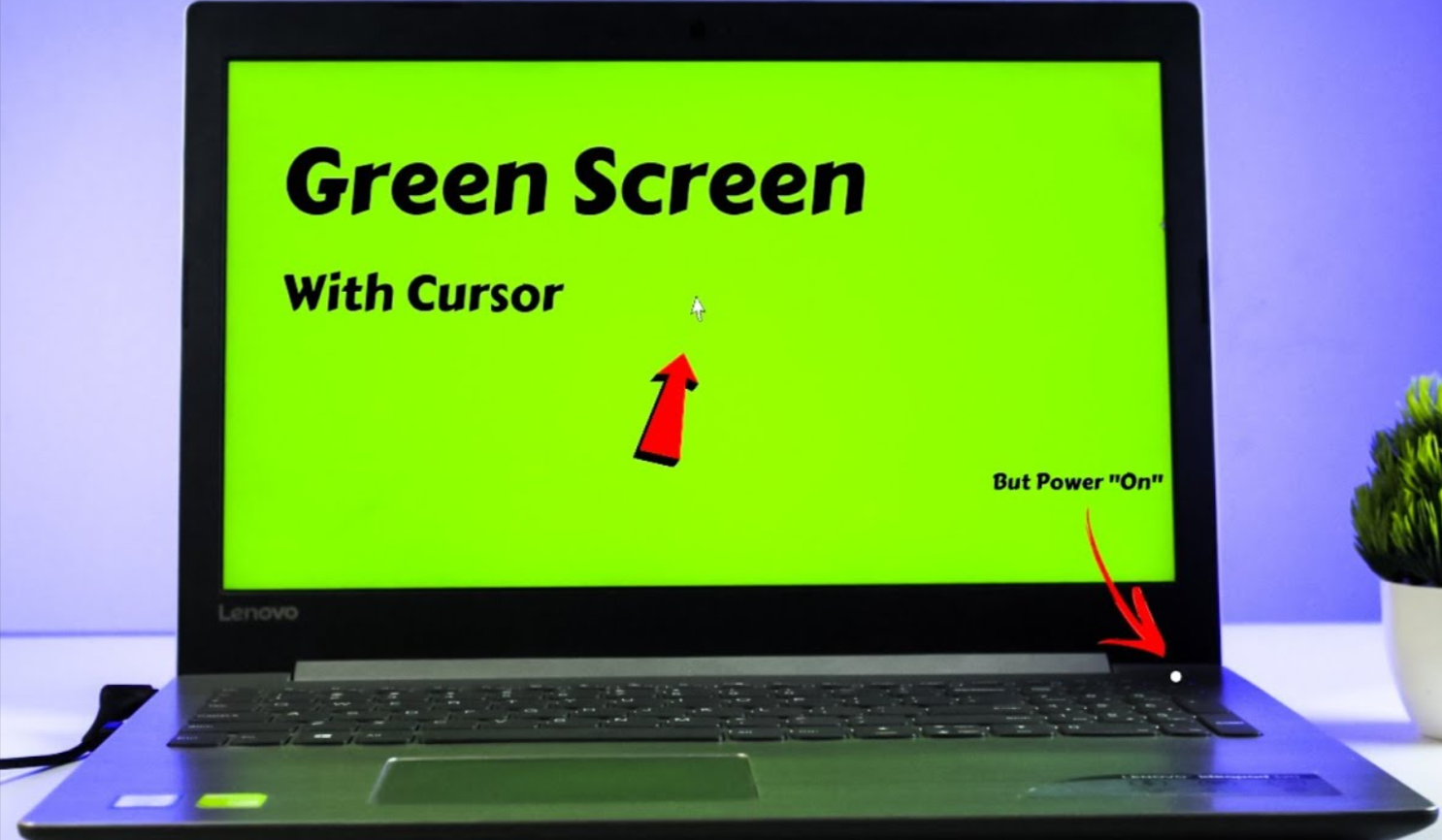
A green screen on a laptop is usually caused by a loose display cable, a faulty graphics driver or failing graphics hardware, and most cases can be narrowed down in under 30 minutes with no tools.
The symptom shows up in several ways: the whole display tinted green, green lines or bars across the picture, a solid green screen at startup, or green flickering during video and games. Where and when it appears is the best clue to the cause.
If the green tint also shows on an external monitor, the problem is almost certainly software or the graphics chip. If only the laptop’s own panel is affected, suspect the display cable, hinge wiring or the panel itself.
What Causes of a Green Screen on a Laptop?
The cause is either software (drivers, settings, system files) or hardware (cable, panel, graphics chip). The table lists the usual suspects, with the clue that points to each.
| Cause | Type | Typical clue |
|---|---|---|
| Outdated or corrupt graphics driver | Software | Green tint appears after an update or in games and video only |
| Hardware acceleration conflict | Software | Green or flickering video in a browser or media player |
| Wrong colour profile or display settings | Software | Tint appears on the desktop but not in BIOS or on an external monitor |
| Loose or damaged display (LVDS/eDP) cable | Hardware | Green changes or flickers when you move the lid or flex the hinge |
| Overheating GPU | Hardware | Green screen after long gaming or heavy load, fans running loudly |
| Failing GPU or damaged motherboard solder joints | Hardware | Green or garbled screen even in BIOS and on an external monitor |
| Damaged LCD panel | Hardware | Pressure marks, cracks, or green lines that stay on the laptop’s screen only |
| Corrupt BIOS or firmware | Software | Green screen right at startup, before Windows loads |
| Failed Windows update or corrupted system files | Software | Green screen after an update, sometimes with a crash or restart |
Step-by-Step Guide to Fix It
Work through these in order, from the quickest and safest fix to the most involved. Stop as soon as the green screen goes away.
Step 1: Restart and check where the problem appears
- Save your work and restart the laptop. A temporary graphics glitch often clears on reboot.
- Enter the BIOS/UEFI setup (usually by pressing F2, F10, Del or Esc at startup). If the screen looks normal there, the cause is software. If it is green in the BIOS too, the cause is hardware.
- Connect an external monitor or TV via HDMI or USB-C. A normal picture on the external display points to the laptop’s panel or cable. A green picture on both points to the graphics chip or driver.
Step 2: Do a hard reset
- Shut down, unplug the charger and, if the battery is removable, take it out.
- Hold the power button for 30 seconds to drain residual power.
- Reconnect power and start the laptop.
Step 3: Update or reinstall the graphics driver
- Press Win + X and open Device Manager, then expand Display adapters.
- Right-click your graphics adapter and choose Update driver, then Search automatically for drivers.
- If that does not help, choose Uninstall device (tick the option to delete the driver software), restart, and let Windows reinstall it.
- For best results, download the latest driver directly from the laptop maker, Intel, AMD or NVIDIA.
- If the problem began after an update, use Roll Back Driver in the adapter’s Properties, under the Driver tab.
If the screen is too green to read, restart into Safe Mode (hold Shift while clicking Restart, then choose Troubleshoot, Advanced options, Startup Settings) and do these steps there.
Step 4: Check display settings and colour profile
- Right-click the desktop and open Display settings, then Advanced display.
- Confirm the refresh rate is the laptop’s recommended value.
- Turn off Night light and any HDR or colour filter under Settings, Accessibility, Color filters.
- In Color Management, set the colour profile back to the default sRGB profile.
- Reset any custom colour calibration made in your graphics control panel.
Step 5: Turn off hardware acceleration
If the green tint only shows in video, a browser or a specific app, open that app’s settings and switch off hardware acceleration. Restart the app and test again.
Step 6: Repair system files and update Windows
- Open Command Prompt as administrator.
- Run
sfc /scannowand let it finish. - Then run
DISM /Online /Cleanup-Image /RestoreHealth. - Install pending Windows updates and any BIOS update offered by your laptop maker, then restart.
Step 7: Reduce heat
- Make sure the vents are clear and the laptop sits on a hard, flat surface or a cooling pad.
- Blow dust out of the vents with compressed air.
- Check whether the green screen appears only after heavy use. If it does, overheating is likely, and the fans or thermal paste may need professional cleaning.
Step 8: Test the display cable and hinge
- Slowly open and close the lid while watching the screen.
- Gently press along the screen’s bezel and near the hinge.
- If the colour changes, flickers or returns to normal as you move the lid, the display cable is loose or damaged.
Opening a laptop can void the warranty and risks damage. Reseating the display cable is best left to a technician unless you are experienced.
Step 9: Reset or reinstall Windows
If the screen is fine in the BIOS but still green in Windows after all of the above, back up your files and use Settings, System, Recovery, Reset this PC. A clean reinstall rules out deep software corruption.
When to Seek Professional Repair
Take the laptop to a service centre if the green screen survives the steps above and any of these apply:
- The screen is green in the BIOS and on an external monitor, which suggests a failing GPU or motherboard fault.
- Moving the lid changes the colour or causes flickering, which suggests a damaged display cable or hinge wiring.
- The panel shows cracks, pressure marks or spreading lines, which means the LCD needs replacing.
- The laptop is under warranty. Repair there is usually free, and opening it yourself may void cover.
A display cable or panel replacement is generally cheaper than a motherboard repair, so ask for a diagnosis and written quote before approving work.
Conclusion
Most green screens come from drivers, settings or a loose cable, so start with a restart, an external monitor test and a driver reinstall before spending any money. If the screen stays green in the BIOS or on an external display, the fault is in the hardware and needs a technician. Keep your drivers and BIOS up to date, keep the vents clean, and avoid flexing the lid to prevent the problem from coming back.
FAQ
Why did my laptop screen suddenly turn green?
The usual causes are a driver glitch after an update, a loose display cable, or overheating. Restart first, then test with an external monitor to tell software from hardware.
Can a green screen fix itself?
Sometimes. A temporary driver or heat-related glitch can clear after a restart or cooldown. A recurring or permanent green screen usually means a driver fault or failing hardware.
Is a green screen a sign of a dying GPU?
It can be. If the screen is green in the BIOS and on an external monitor, and driver reinstalls do not help, the graphics chip or motherboard is the likely culprit.
Why is only part of my screen green, or why are there green lines?
Green lines or patches usually point to a damaged display cable or LCD panel, especially if pressing the bezel or moving the lid changes them.
Why is my screen green only when playing videos?
This is typically a hardware acceleration or video driver problem. Update the graphics driver and turn off hardware acceleration in the browser or player.
Can a Windows update cause a green screen?
Yes. A faulty graphics driver delivered with an update is a common trigger. Use Roll Back Driver or install the latest driver from the manufacturer.
Can I fix a green screen at home?
Software causes, such as drivers, settings and system files, are easy to fix at home. Cable, panel and motherboard faults need a technician.
How much does it cost to fix?
Software fixes are free. Hardware repair costs vary widely by model and region, so get a written quote after diagnosis. A cable reseat is usually the cheapest repair, and a motherboard or GPU repair the most expensive.
How can I prevent it?
Keep drivers, Windows and BIOS updated, keep vents dust-free, use the laptop on a hard surface, and avoid putting pressure on the lid or screen.